Authenticate with PasswordFree on websites
The PasswordFree passwordless authentication system enables you to authenticate on the websites with PasswordFree integrated into them without using a password. To get access to website services and applications, three requirements are to be fulfilled:
- You must have the PasswordFree application installed on your mobile device (see PasswordFree mobile app overview) or on your desktop computer (see PasswordFree desktop app Overview ).
- The website must support the PasswordFree passwordless authentication system.
- You must register an account with the website (see Register account).
After you have registered your account on the website with PasswordFree, you will be able to authenticate on this website without a password any time you like.
You can authenticate on websites with your PasswordFree login and your social media logins (Google and Facebook).
authenticate with your PasswordFree login
Procedure:
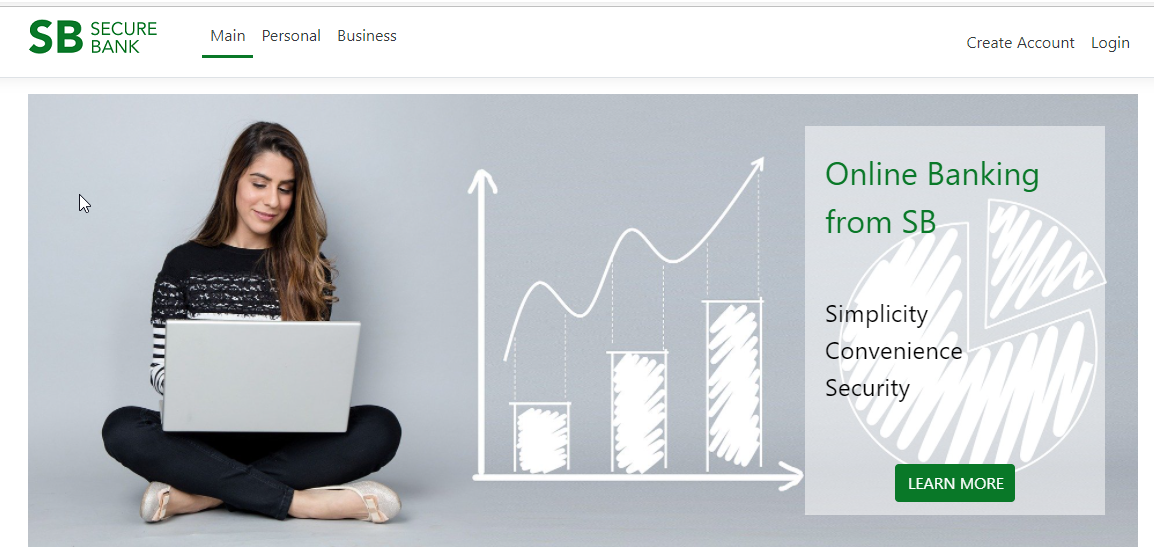
1. On the chosen website with PasswordFree integrated into it, click Login.
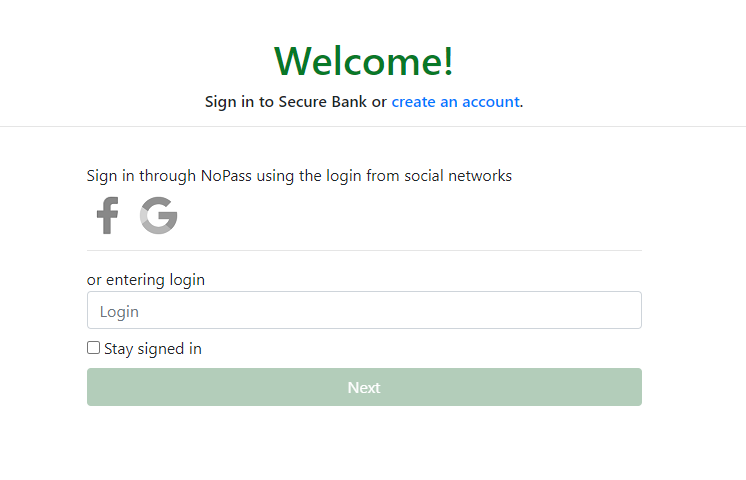
2. On the sign-in page, enter your login and click Next.
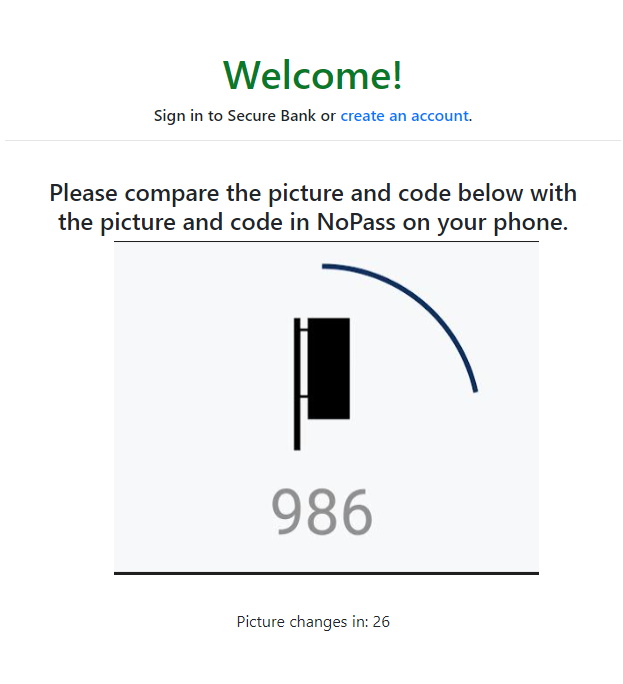
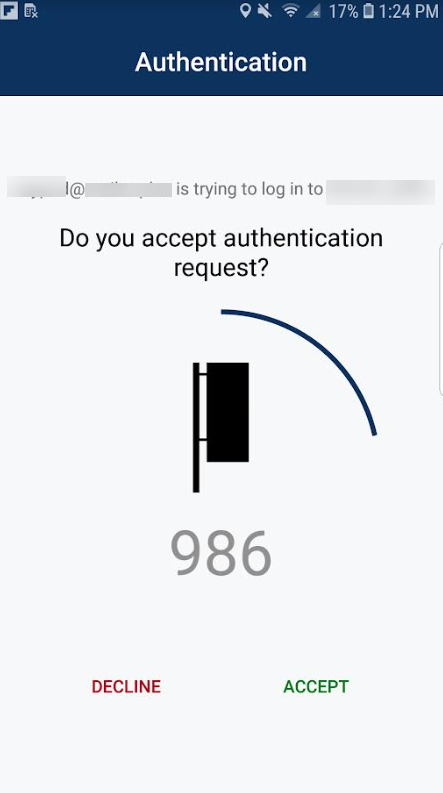
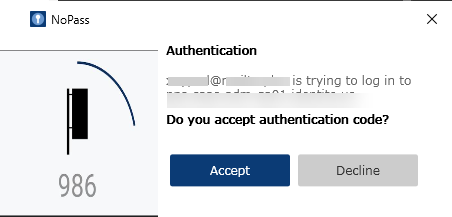
3. A push notification is sent to your other devices with PasswordFree installed on them. Compare the pictures and 3-digit codes sent to your devices and your login page. In case they are identical, click Accept on your desktop application, or tap Accept in your mobile applications.
A push notification on the website
A push notification on mobile devices
A push notification in the desktop application
You have signed in to the website through your PasswordFree account.
4. If after you tap Accept the Internet connection is lost on the device you are using to accept the push notification, the following notification is displayed on your mobile device screen:

5. When you tap OK, your authentication session is timed out and you will have to begin the authentication process again.
authenticate with social media login
You can sign in to your account on the website with PasswordFree integrated into it using your Google or Facebook login.
sign in to your account with google
Procedure
1. On the chosen website with PasswordFree integrated into it, click Login.

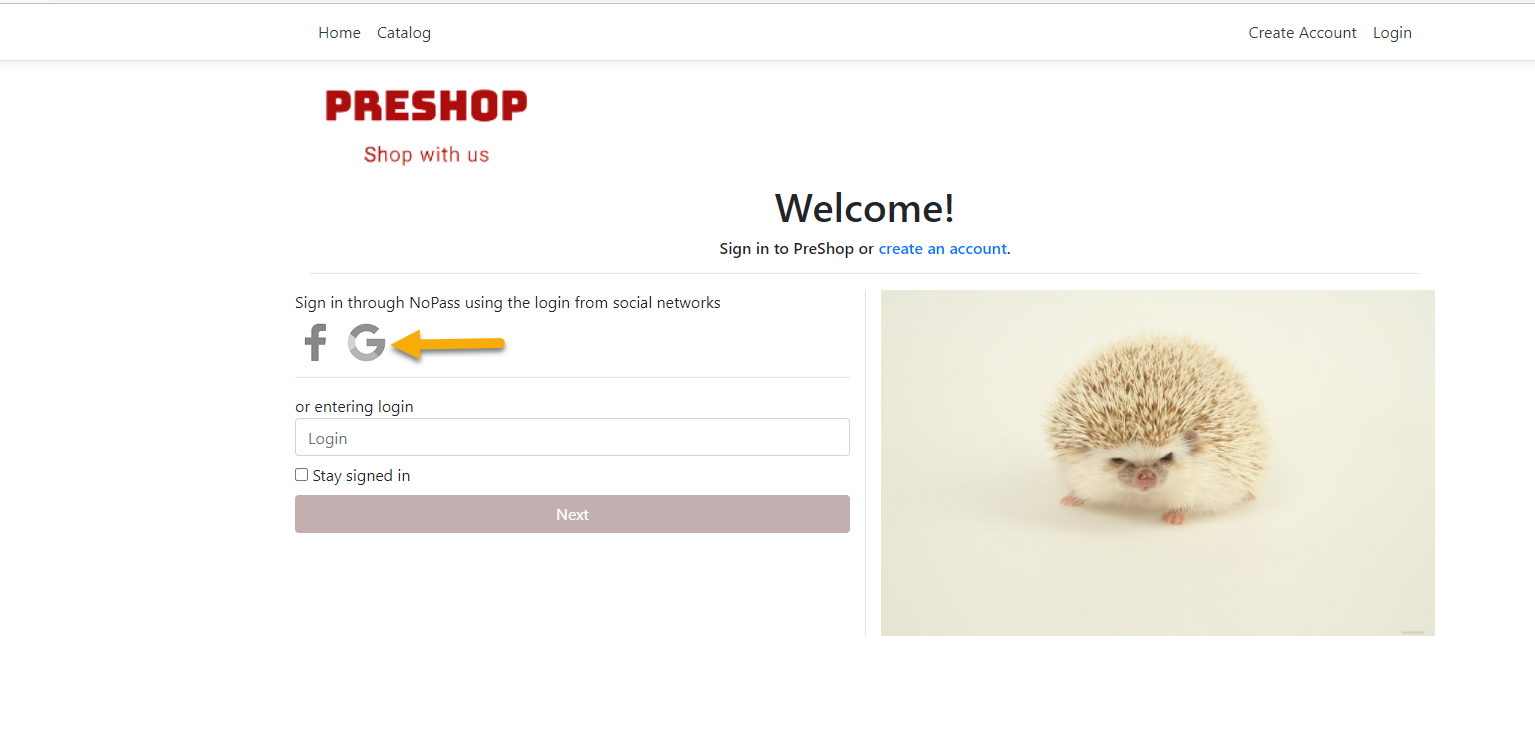
2. On the sign-in page, click the Google icon.
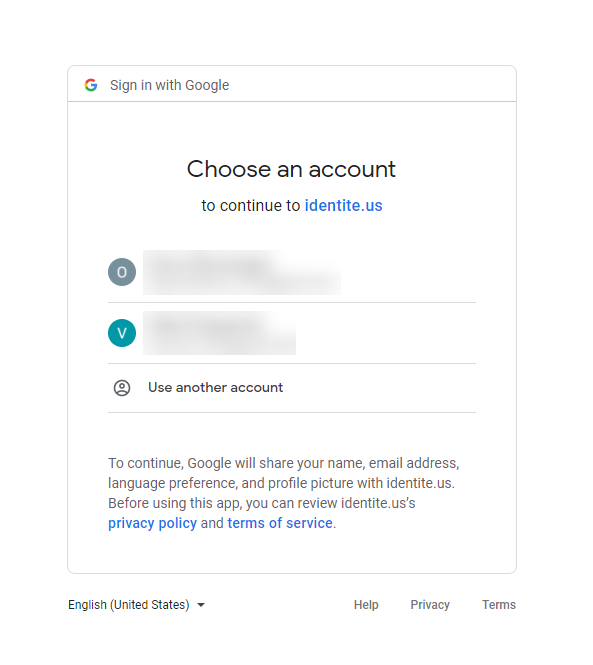
3. Click the Google account that was used to register your PasswordFree account on this website from the list of your Google accounts.
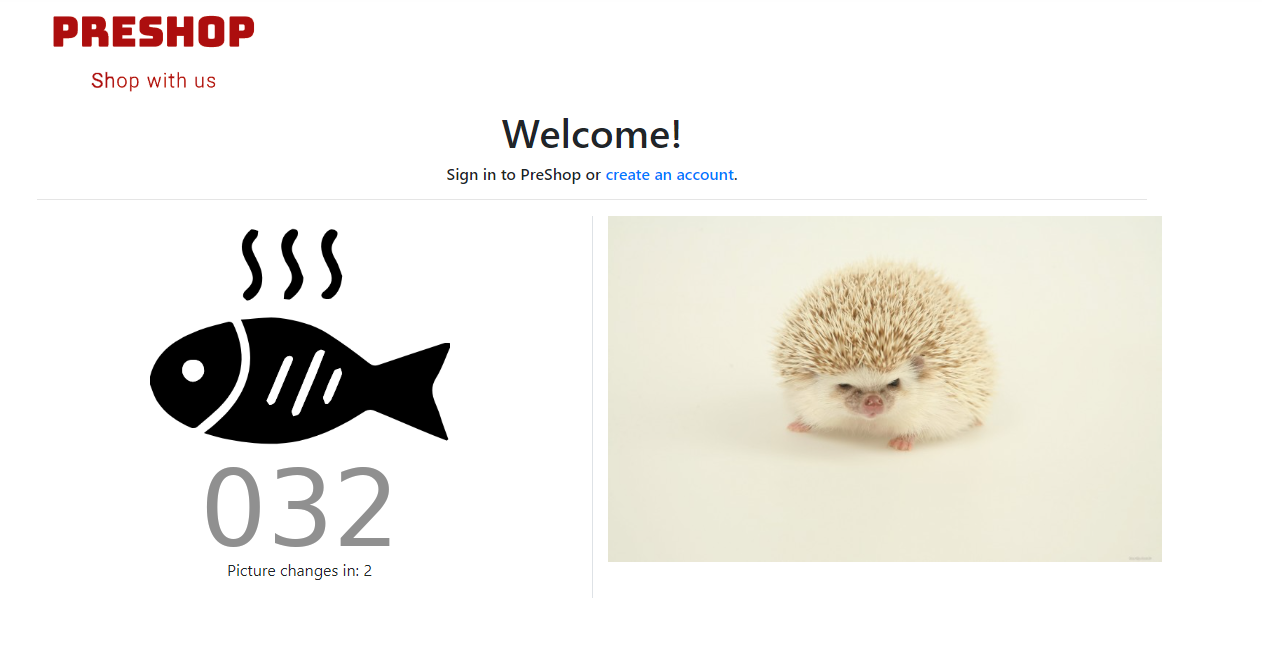
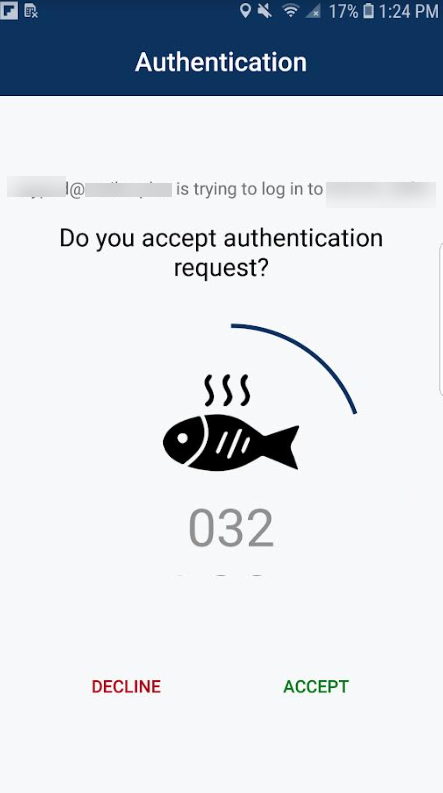
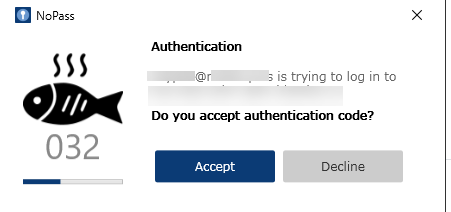
4. A push notification is sent to your other devices with PasswordFree installed on them. Compare the pictures and 3-digit codes sent to your devices and your login page. In case they are identical, click Accept on your desktop application, or tap Accept in your mobile applications.
A push notification on the website
A push notification on mobile devices
A push notification in the desktop application
sign in to your account with Facebook login
Procedure
1. On the chosen website with PasswordFree integrated into it, click Login.
2. On the sign-in page, click the Facebook icon.
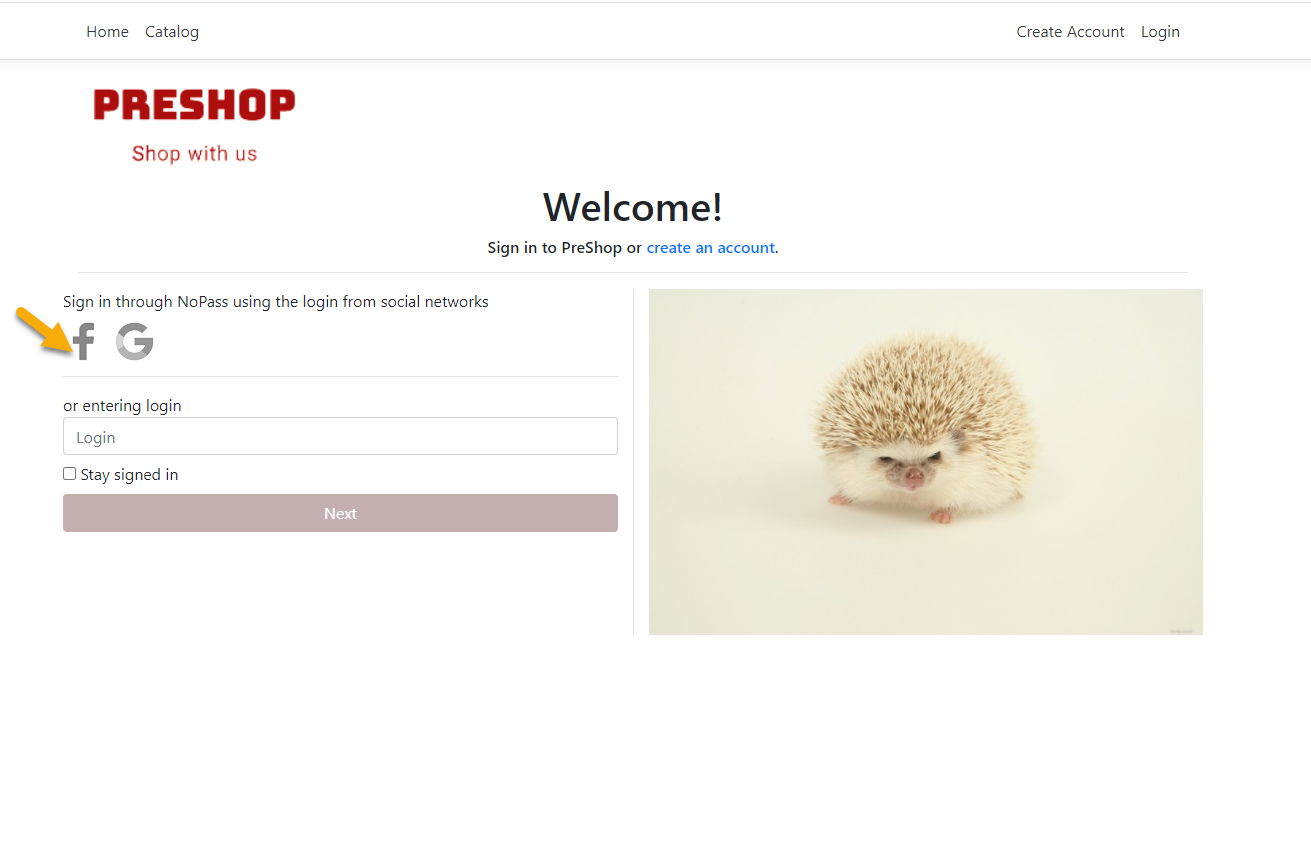
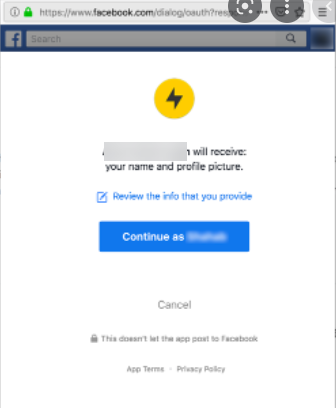
3. On the next screen, the website where you intend to log in to your account with PasswordFree shall request access to your data such as your name and Profile picture, and offer you to continue via your Facebook account. Click Continue as.
4. A push notification is sent to your other devices with PasswordFree installed on them. Compare the pictures and 3-digit codes sent to your devices and your login page. In case they are identical, click Accept on your desktop application, or tap Accept in your mobile applications.
A push notification on the website
A push notification on mobile devices
A push notification in the desktop application