Sign in to your Profile
After Profile creation, you can sign in to your Profile from the browser both on your PC and mobile device, in your desktop and mobile app. To do so, the following preconditions are to be fulfilled:
- Your PasswordFree Profile is to be created. For more detailed information, go to Create Profile .
- You are to have the PasswordFree app installed on your PC (PasswordFree desktop app) or on your mobile device (PasswordFree mobile app). Otherwise, go to Recover Profile.
Sign in to your PasswordFree Profile from the browser
Procedure
1. Open the NoPass.us page on your desktop computer or your mobile device and perform one of the following actions:
- On your desktop, click Sign in.
- On your mobile device, tap the hamburger menu in the upper right corner of your screen and tap Sign in.
Desktop view

Mobile view

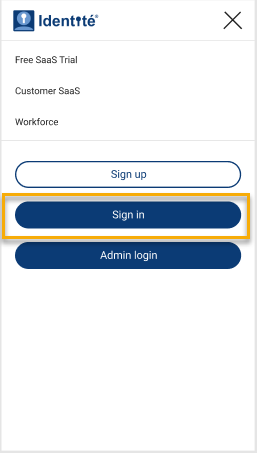
2. Depending on the way you want to sign in to your Profile, select one of the following options.
Option 1: sign in using your PasswordFree login
1) On the following page, enter your PasswordFree login and click or tap Sign in.

2) Compare the picture and 3-digit code in your browser and in one of your other devices with PasswordFree installed (a mobile device with PasswordFree mobile app or your PC with PasswordFree desktop app).
Push notification in the browser

Push notification in the PasswordFree desktop app

Push notification on mobile device

3) In case the pictures and codes are identical, tap Accept on your mobile device or click Accept in your desktop app.
You are signed in to your PasswordFree Profile.
Option 2: sign in with your Google account
1) On the following page, click or tap the Google icon.

2) Click or tap the Google account that was used to register your PasswordFree Profile from the list of your Google accounts.
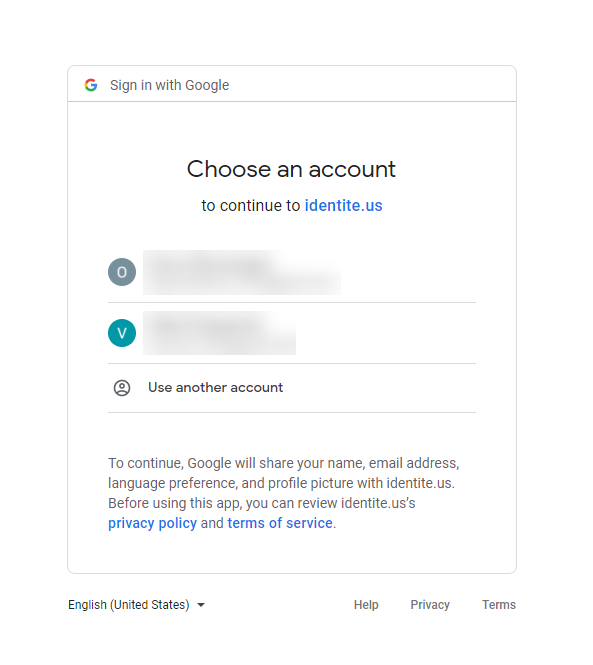
3) Compare the picture and 3-digit code in your browser and in one of your other devices with PasswordFree installed (a mobile device with PasswordFree mobile app or your PC with PasswordFree desktop app).
4) In case the pictures and codes are identical, tap Accept on your mobile device or click Accept in your desktop app.
You are signed in to your PasswordFree Profile.
Option 3: sign in with your Facebook account
1) On the following page, click the Facebook icon.

2) On the Facebook sign-in page, log in to your Facebook account entering your username and password or continue with your Facebook account.
3) Compare the picture and 3-digit code in your browser and in one of your other devices with PasswordFree installed (a mobile device with PasswordFree mobile app or your PC with PasswordFree desktop app).
4) In case the pictures and codes are identical, tap Accept on your mobile device or click Accept in your desktop app.
You are signed in to your PasswordFree Profile.
3. If after you started the sign-in process, the Internet connection on your computer is lost, the following notification is displayed on your computer screen:

4. Check the Internet connection and try again later.
sign in to your PasswordFree Profile in your mobile app
You can sign in to your PasswordFree Profile on your Android or iOS device with PasswordFree mobile app installed.
To sign in to your PasswordFree Profile on your Android device, go to Sign in to your Profile on your PasswordFree mobile app.
To sign in to your PasswordFree Profile on your iOS device, go to Sign in to your Profile in your PasswordFree mobile app.
sign in to your PasswordFree Profile in your desktop app
You can sign in to your PasswordFree Profile on both your Windows PC and macOS computer with PasswordFree desktop app installed.
To sign in to your PasswordFree Profile on your Windows PC, go to Sign in to your Profile on your PasswordFree desktop app.
To sign in to your PasswordFree Profile on your macOS computer, go to Sign in to your Profile on your PasswordFree desktop app.