Unlock Windows desktop with NoPass™
To unlock your Windows desktop with NoPass™ Desktop Unlock, perform the following actions:
Procedure
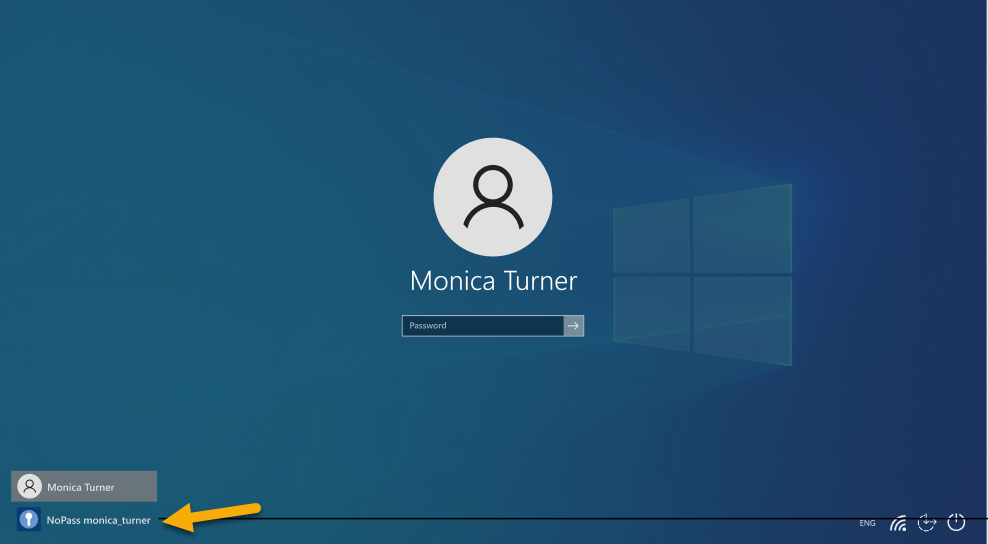
1. On your Windows lock screen, click the NoPass™ tile.
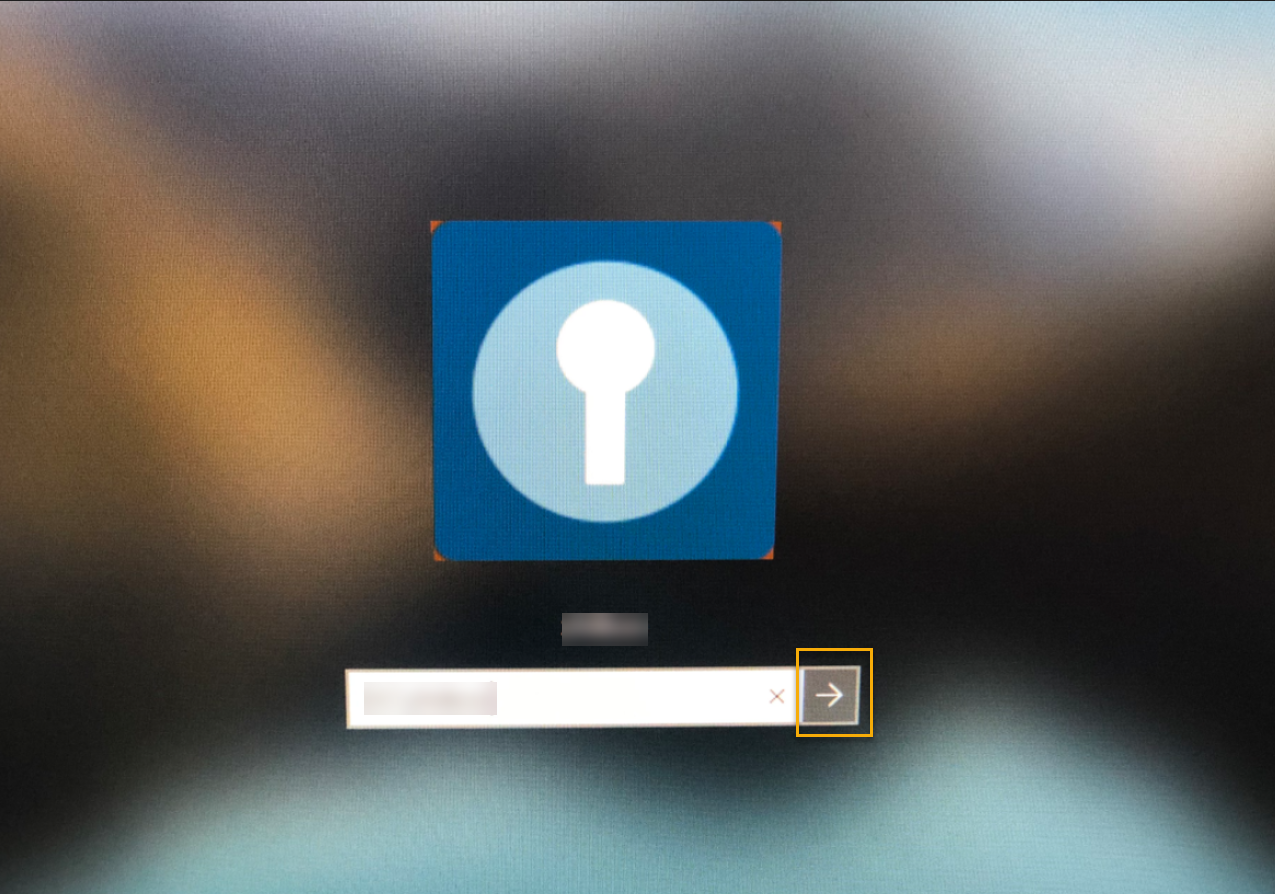
2. On the following screen, confirm your NoPass™ login by clicking the  arrow.
Your following actions depend on your NoPass™ profile status on your mobile app and desktop app.
Option 1: you are signed out from your profile on any other device
3. If you are signed out from your profile on any other device, the following notification is displayed:
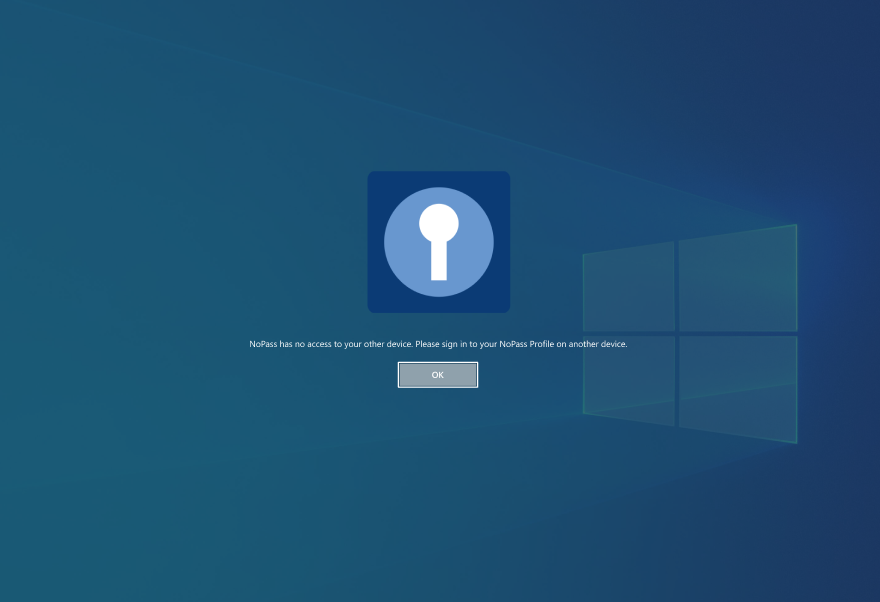
3. Click OK and sign in to your NoPass™ profile on any other device.
Option 2: there is no Internet connection
4. If you have no or weak Internet connection, the following notification is displayed:
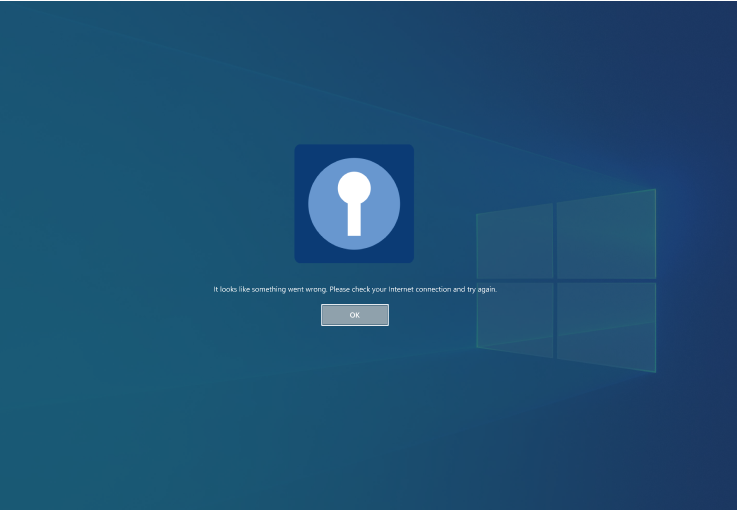
5. Click OK and try again later.
Option 3: you are signed in to your NoPass™ profile on both your mobile device and the currently used desktop
6. If all the preconditions are fulfilled, a push notification is sent to your device where you are signed in (but not to the current NoPass™ desktop app) and is simultaneously displayed on your desktop screen.
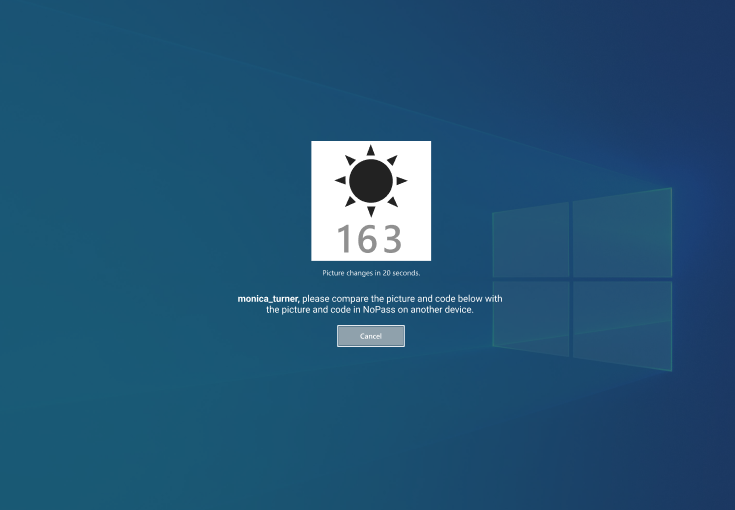
7. If the pictures and codes are the same in your desktop app and on your mobile device, tap Accept in your NoPass™ mobile app.
8. If your Windows credentials have been changed, the following pop-up is displayed:
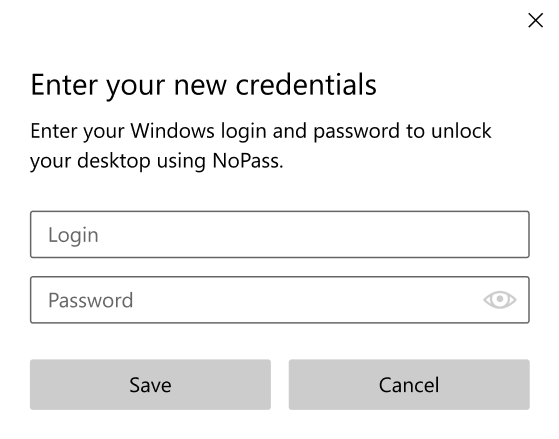
9. Type your new Windows credentials and confirm them by clicking Save.
10. To decline authentication, click Cancel on the desktop lock screen or tap Decline on your other device where the push was received. Then, the following notification is displayed on your desktop:
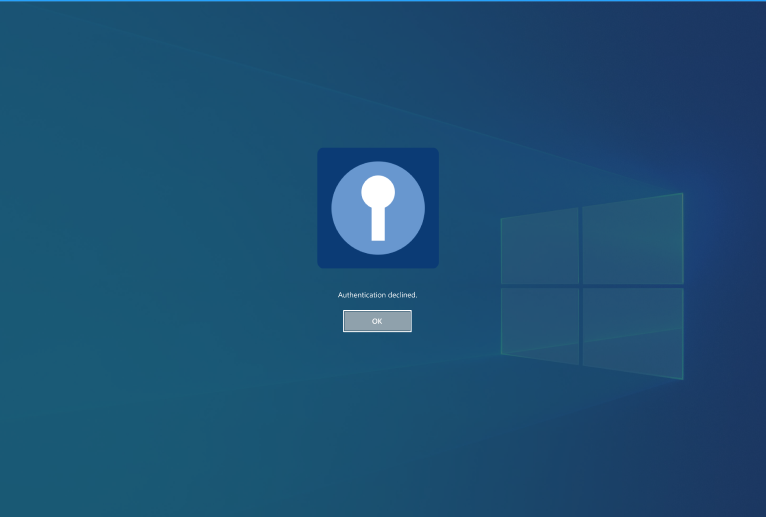
11. On your mobile device, perform one of the following steps:
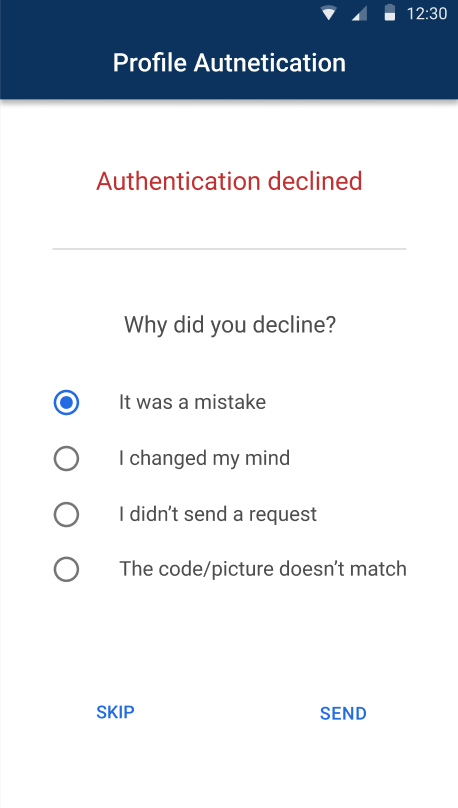
1) Fill in the form and tap Send.
2) Tap Skip to avoid filling in the form.
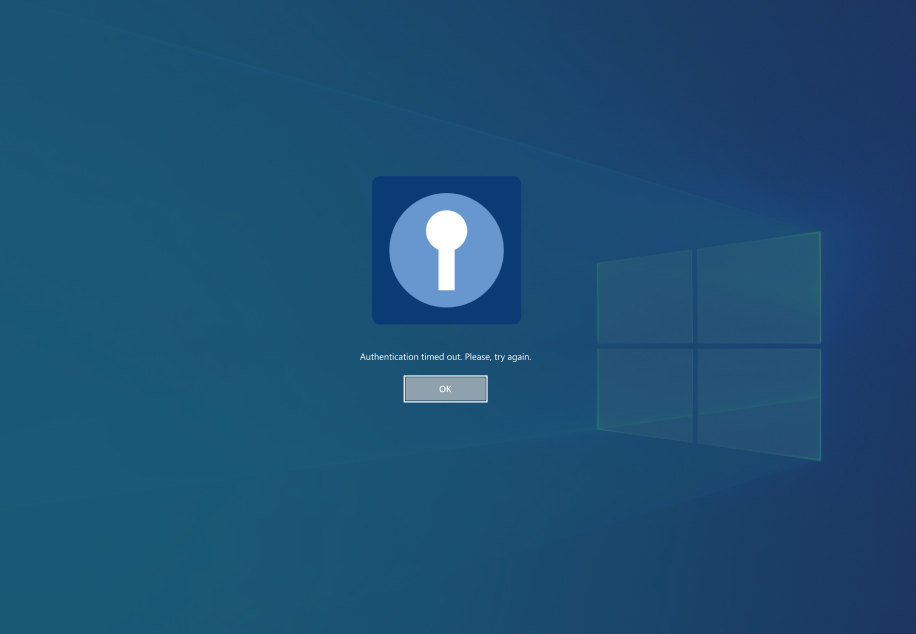
12. If you give no response within 2 minutes, the session on your mobile device is terminated and the following notification is displayed on your desktop screen:
previous topic: Installation/Registration
next topic: Overview: NoPass™ Consumer "Web Portal"