Logs
In your NoPass™ Admin Console, you can view and manage users' and administrators' logs.
view logs
Procedure
1. To view logs, navigate to the Logs tab in the Workspace menu.
The logs tab displays information on User ID, actions performed, and the time of such actions, as well as the IP address from which the action was performed.
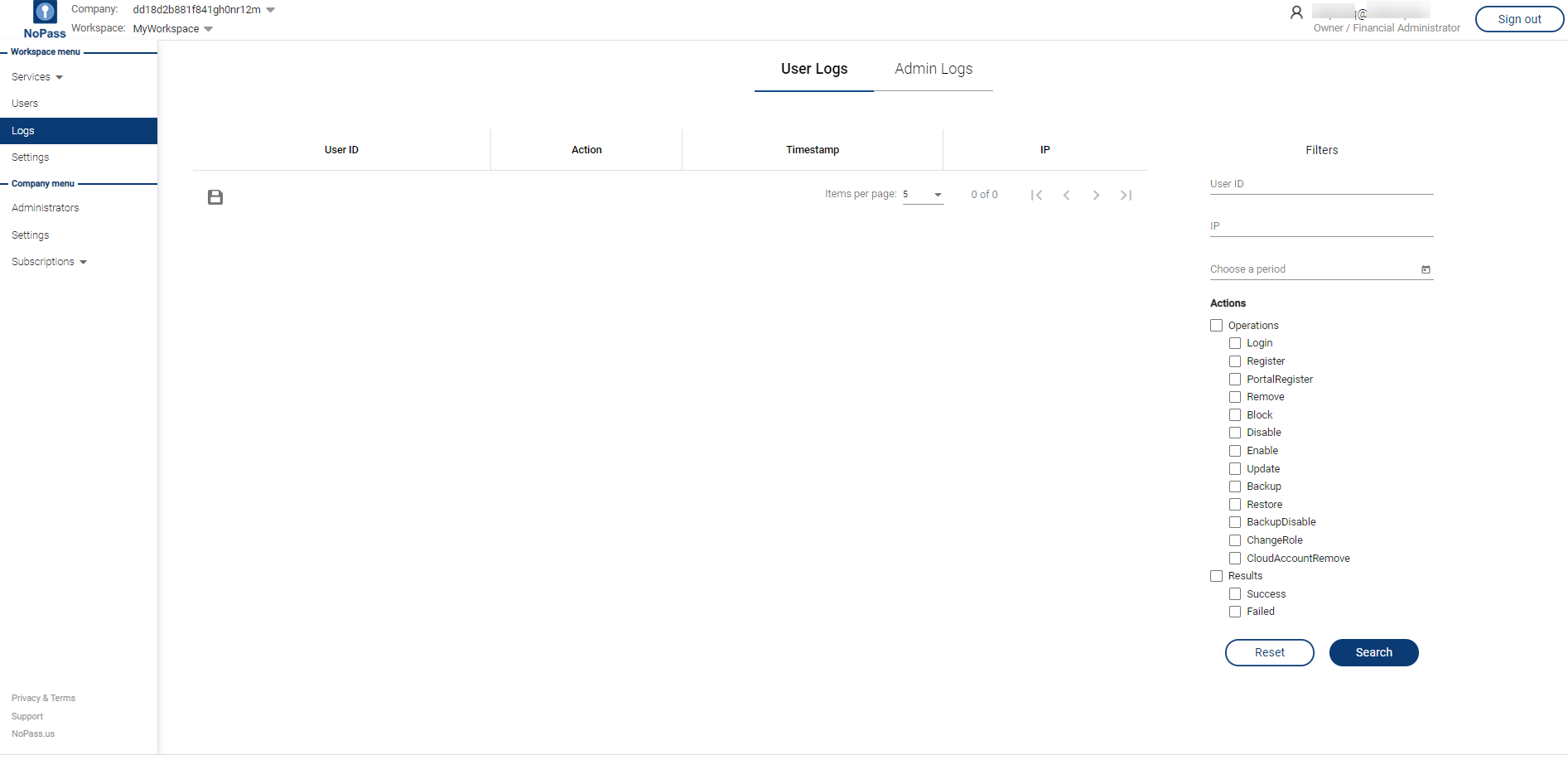
2. To view and manage users' logs, click User logs.
filter logs
By default, the logs are displayed for the whole preceding period.
Procedure
1. To filter log records, set up the filtering criteria.
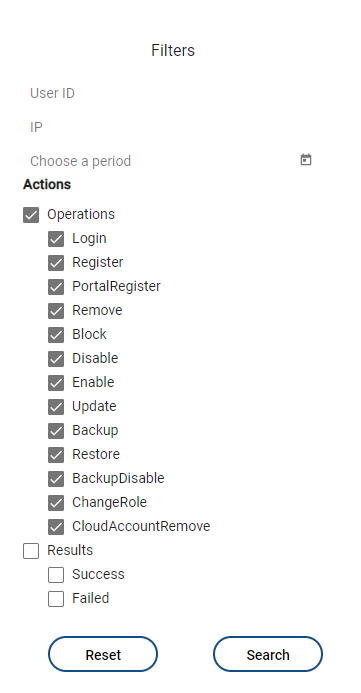
- Click User ID and type the user login.
- Click IP and enter the user device IP.
- In the Choose a period field, specify the date or period.
- From Actions, select operations and results.
2. To search for a user by the given criteria, click Search.
3. To clear all the fields, click Reset.
export logs
You can save the selected range of log records to a PDF file.
Procedure
1. To export logs, click  Save as PDF.
2. The PDF file containing log records shall be saved to your local directory.
next topic: Licensing
previous topic: Users